
Shortcuts, input toolbar, stop generation, export and clear chat, AI status and inline edit tips.
Tips & Advanced Operations
Get the most out of Goki Assistant.
Essential Shortcuts
| Shortcut | Function |
|---|---|
Enter | Send message |
Shift + Enter | New line in the input box |
↑ / ↓ | Navigate slash commands / function suggestions |
Tab | Select the highlighted suggestion |
Esc | Close the suggestion list / dismiss a ghost suggestion |
Ctrl/Cmd + / | Toggle AI Assistant |
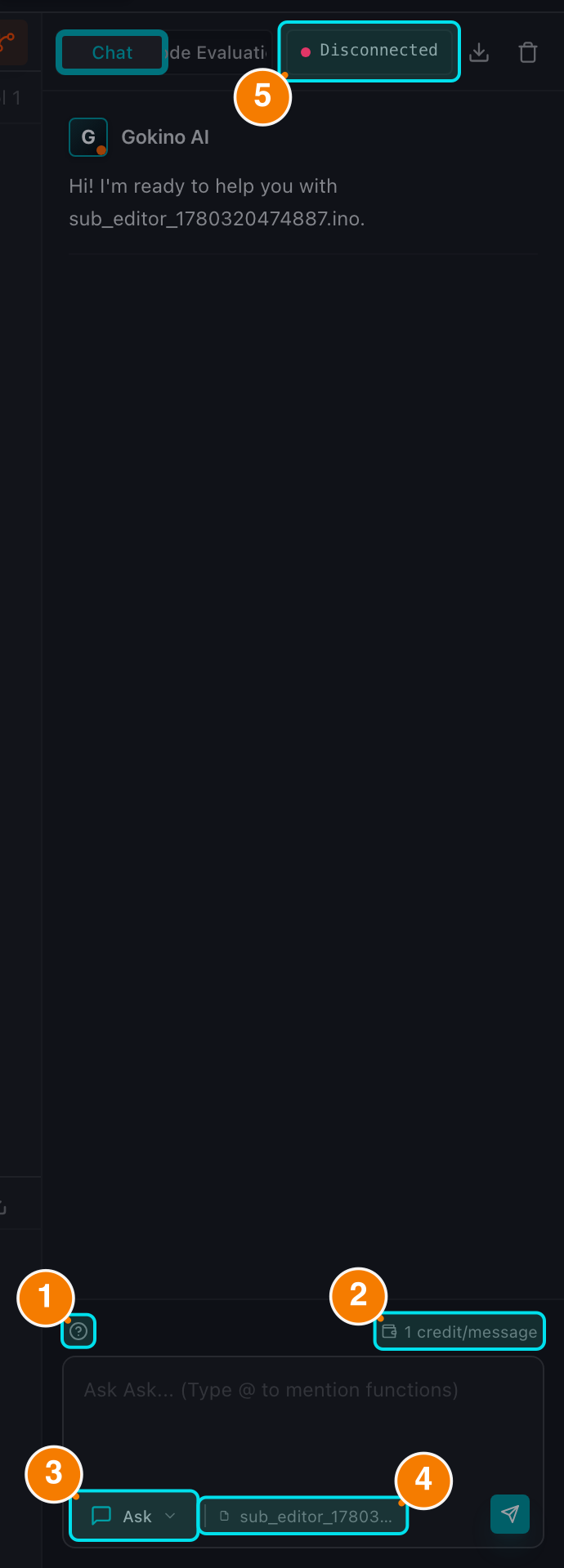
(1) Shortcuts help. (2) Credit cost for the current mode. (3) Mode selector. (4) Active file. (5) AI status.
Chat Input Toolbar
Above the text box you will find:
- ? (Help): a quick guide to the
/,@,EnterandShift + Entershortcuts. - Credit Cost: the cost of the next message — 1 credit for Code/Ask/Debug, 2 for Architect (shown in amber). Code Review costs 2 credits per run.
- Mode Selector: switch between Code, Architect and Ask.
- Active File: the file the assistant is currently reading.
There are no temperature/model/auto-insert settings on the input bar: the assistant picks the model per mode internally.
Other Useful Features
Stop Generation
While the AI is answering, the Send button becomes a Stop square. Use it when the answer is heading in the wrong direction.
Export Chat
The Download button in the assistant header exports the whole conversation to a Markdown file (questions, answers and code blocks).
Clear Chat
The trash button clears the current conversation after a confirmation dialog.
AI System Status
Click the status indicator (response time + green/red dot) to see the endpoint, API key state and browser details.
Inline Edit & Selection
Select code in the editor and ask the AI about it: a context tag appears above the chat input showing the file and line range. Remove it with the × to go back to whole-file questions.
Fix with AI from the Console
After a failed Verify, click Fix with AI on the error line. The assistant switches to Debug mode, receives the compiler error and the relevant code, and answers with a focused diagnosis. Reference quotes from your code are read-only (reference.cpp) to prevent accidental overwrites.
Review Depth
Before running a Code Review, choose Quick, Standard or Detailed. Detailed audits take longer but report more findings.
You have now mastered the Gokino IDE. Start building! 🚀