
Connect the port, set baud rate and line endings, send commands, use history and export or reset.
Serial Monitor
Serial Monitor is how you "talk" to your board: it receives Serial.print() output and sends commands back.
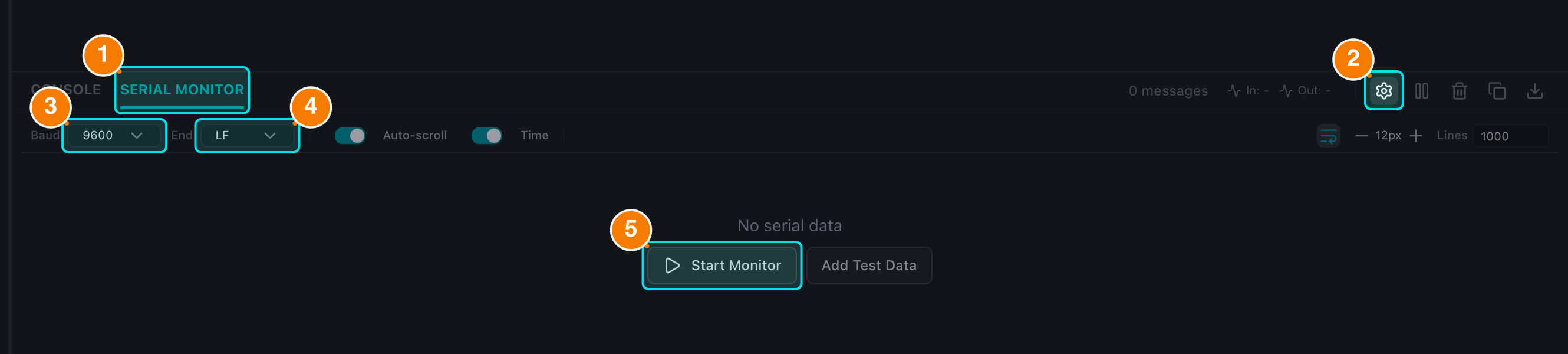
(1) SERIAL MONITOR tab. (2) Settings. (3) Baud rate. (4) Line ending. (5) Start/Stop Monitor.
Connection & Setup
First connect the board and select its port in the Header.
1. Baud Rate
The baud rate in the Serial Monitor must match Serial.begin(baudrate) in your sketch.
- Default: 9600.
- Choose it in the Settings panel (gear icon).
- Full list: 300, 1200, 2400, 4800, 9600, 19200, 38400, 57600, 115200, 230400, 460800, 921600.
- Press Start Monitor (green Play) to open the port; the button becomes Stop Monitor (red square).
2. Line Ending
Configure the characters appended to every command you send (in the Settings panel):
- None — send the raw text only.
- Newline (LF) — append
\n. - Both (CRLF) — append
\r\n(most common). - Carriage Return (CR) — append
\r.
3. Other Settings
- Timestamps: prefix each line with
[HH:mm:ss.SSS]. - Word wrap: wrap long lines instead of horizontal scrolling.
- Font size: adjust the display size.
- Max lines: cap the number of retained log lines.
All settings apply instantly, without reloading the page.
Sending and Receiving Data
Receiving
- Board output appears in the main area and auto-scrolls to the newest line.
- Pause/Resume: stop auto-scrolling to read older lines while new data keeps arriving.
- Data rate: the toolbar shows live throughput (B/s or KB/s).
Sending
- Type a command in the input bar at the bottom and press Enter or the Send button.
- Empty or whitespace-only commands are blocked, and the Send button is disabled when disconnected — no stray bytes are written to the port.
- Command history:
↑/↓cycles through previously sent commands. - Sent data is displayed in a different color from received data.
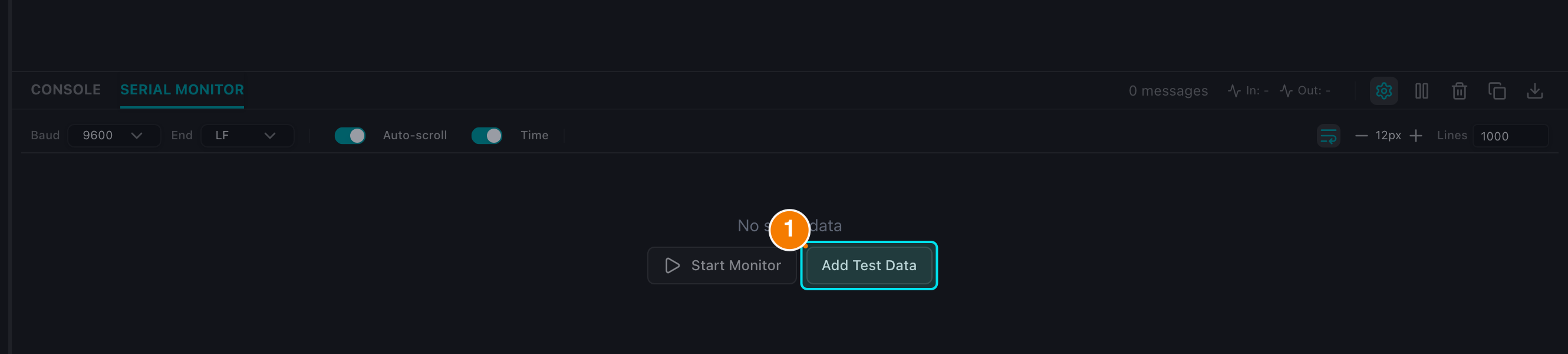
Add three sample lines when no board is connected.
Maintenance Actions
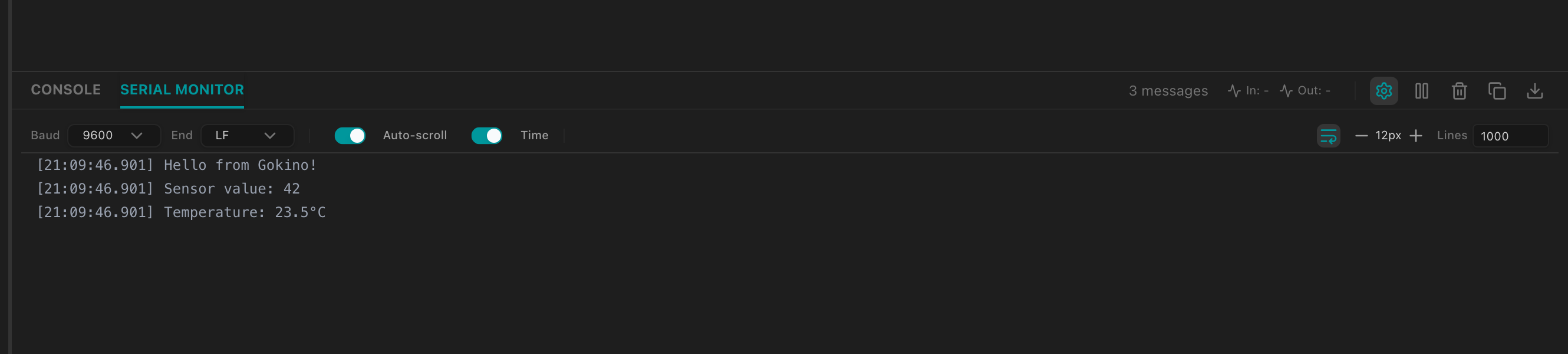
Sample lines inserted with Add Test Data.
- Clear: empties the Serial log only. Logs in the Console tab are untouched (the two tabs are fully isolated).
- Copy / Export: copy the log to the clipboard or download it as a
.txtfile, timestamps included. - Reset Board: sends a reset signal over the Serial control lines — the sketch restarts and reprints its
setup()output. - Add Test Data: with no board connected, insert sample lines to verify fonts, colors and scrolling.
If the Cable Is Unplugged
The IDE detects the disconnection, returns the button to Start Monitor, keeps all previously received lines on screen, and lets you reconnect without reloading the page.
You have now mastered how to use the Serial Monitor to control and debug your project.