
The five Sidebar modules: Explorer, Templates, Libraries, Boards and Shared items.
Sidebar & Project Management
The left Sidebar is where you manage your project's structure and resources. The icon rail contains 5 modules:
| Icon | Module | Description |
|---|---|---|
| Files | Explorer | Manage project files and folders. Switch between Cloud and Local modes. |
| Layout template | Templates | Starter sketches organized by category. |
| Blocks | Libraries | Search, install, uninstall and upload Arduino libraries. |
| CPU | Boards | Install and manage board cores (AVR, ESP32, STM32...). |
| Share | Shared | Items you shared with others, and items shared with you. |
The sidebar can be resized by dragging its right edge, or hidden entirely with the Header menu button or Ctrl/Cmd + B.
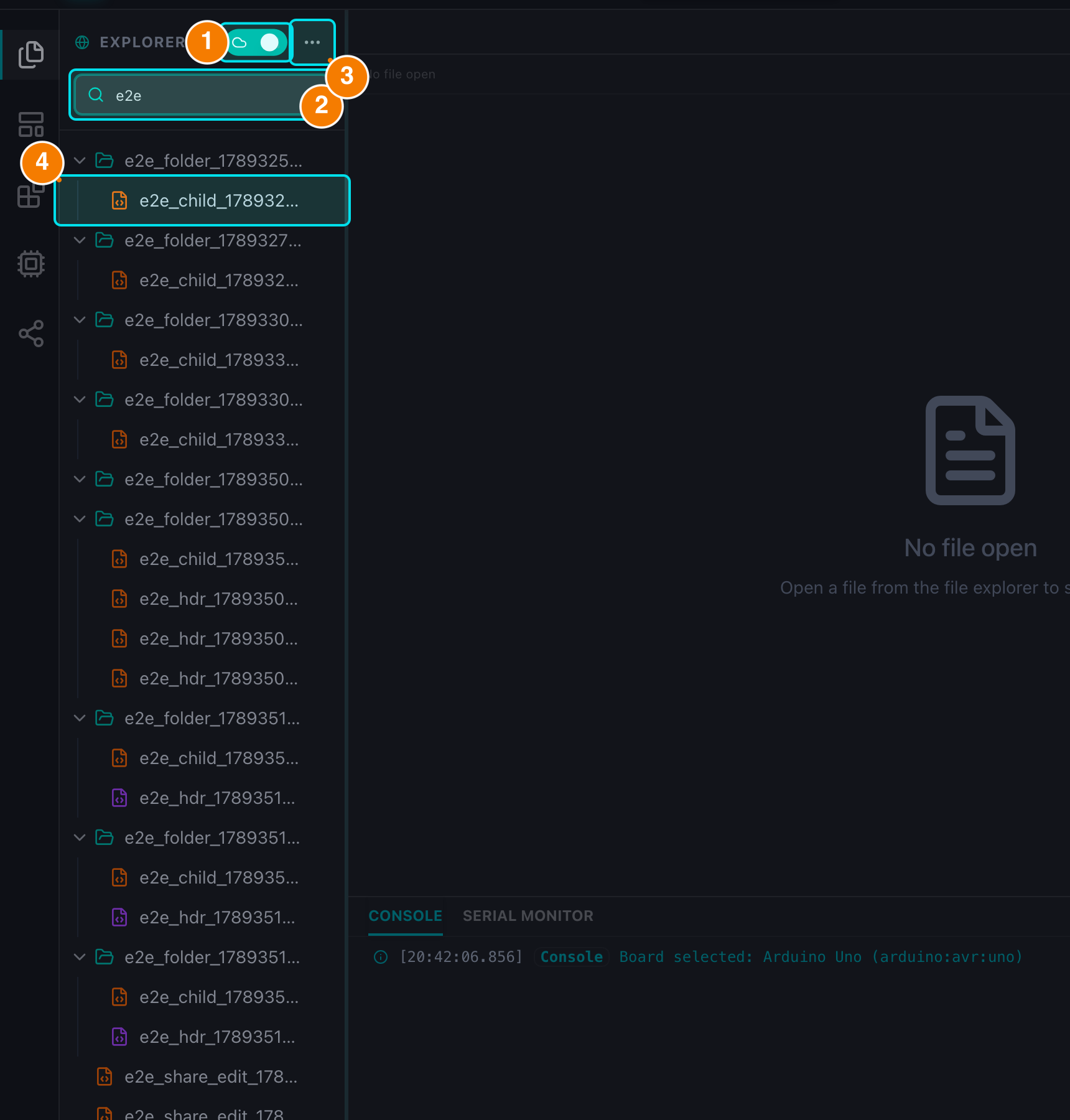
(1) Cloud/Local switch. (2) Search. (3) Actions menu. (4) Folders and .ino files.
File Explorer
Cloud Mode vs Local Mode
Use the mode switch at the top of the Explorer:
- Cloud: Files live in your Gokino workspace on the server. Accessible from any device, shareable, and synced automatically.
- Local: Files stay on your computer. Uses the browser's File System Access API — click Open Folder and grant access to a folder. Chrome or Edge is required. When local files change outside the IDE, open tabs are updated automatically (unless the tab has unsaved changes).
File Operations
- New file / New folder: Open the
...menu on the Explorer header (or on a folder row) and choose New File / New Folder.- For security, the IDE accepts
.inofiles only — created or uploaded files always use the.inoextension.
- For security, the IDE accepts
- Rename:
...menu → Rename. Open tabs update their titles and keep their content. - Delete:
...menu → Delete. A confirmation dialog is shown; deleting a folder asks you to type the folder name and warns how many files/subfolders will be removed. - Delete several items: select them with
Ctrl/Cmd + Click(orShift + Clickfor a range), then pressCtrl/Cmd + Dor right-click → Delete. The batch dialog requires typing the confirmation word. - Right-click on a file/folder: quick actions — Download, Rename (single selection), Delete.
- Drag & drop: move files into folders by dragging them in the tree.
- Search: filter the tree by file or folder name.
- Upload:
...menu → Upload Files (you can target a specific subfolder). Drag.inofiles from your computer into the dialog; folders and other extensions are rejected. - Download workspace: the
...menu can export the whole project as a.zip. - Refresh:
...menu → Refresh Workspace re-fetches the cloud tree without reloading the page. - Open files: click a file in the tree to open it in the Editor. Opening an already-open file focuses its existing tab instead of creating a duplicate.
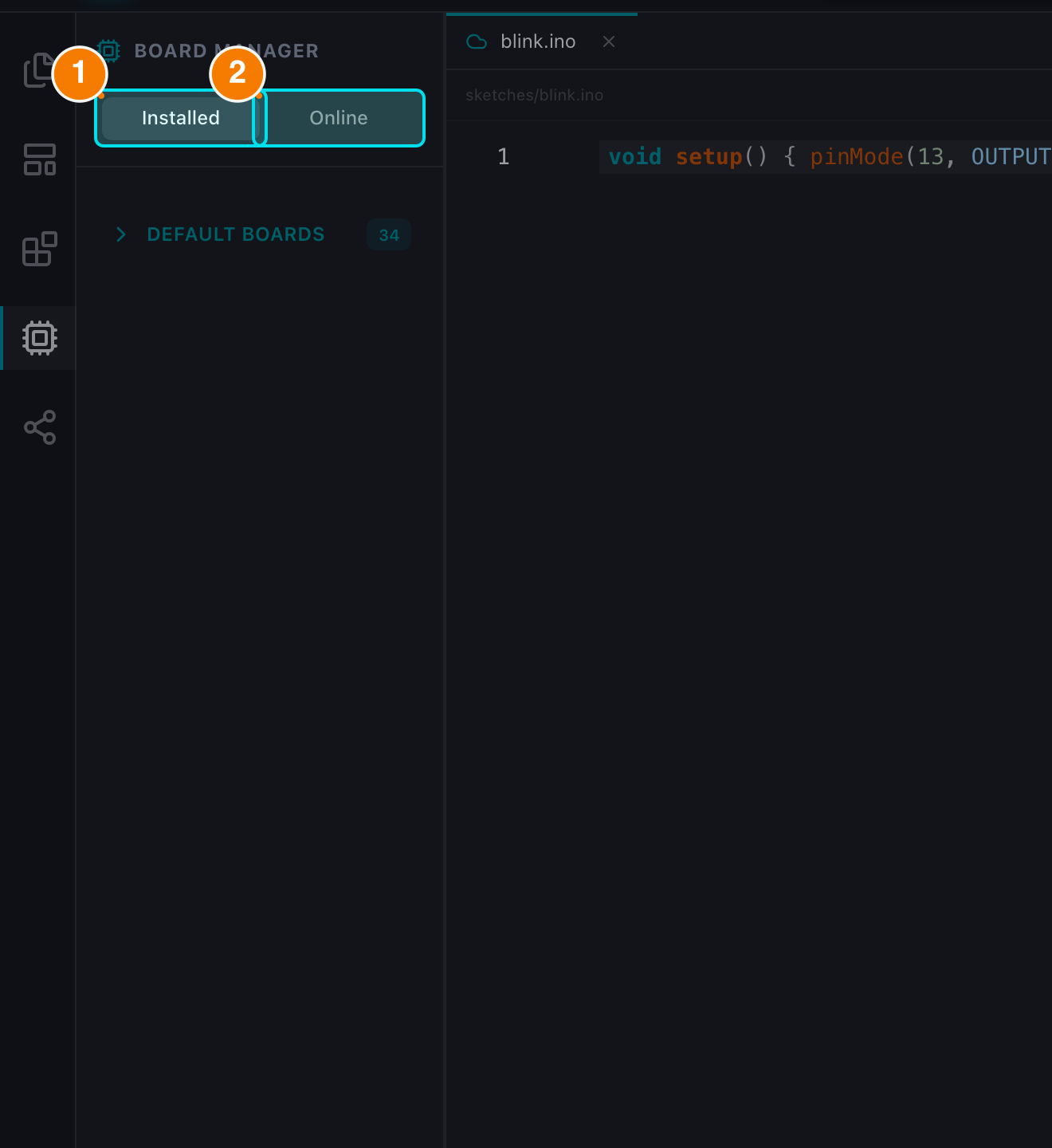
(1) Installed cores. (2) Online tab.
Board Manager
Click the Boards tab (CPU icon) to manage board cores:
- Installed (default tab): boards you installed plus a collapsed Default Boards section (Uno, Nano, Mega...).
- Online: search for a core package (e.g.,
esp32,stm32) and click Install. A spinner is shown while downloading. - Uninstall: remove an installed core from the Installed tab. After uninstalling the board you are currently using, re-select a board in the Header.
- Newly installed boards appear in the Header's Board Selector.
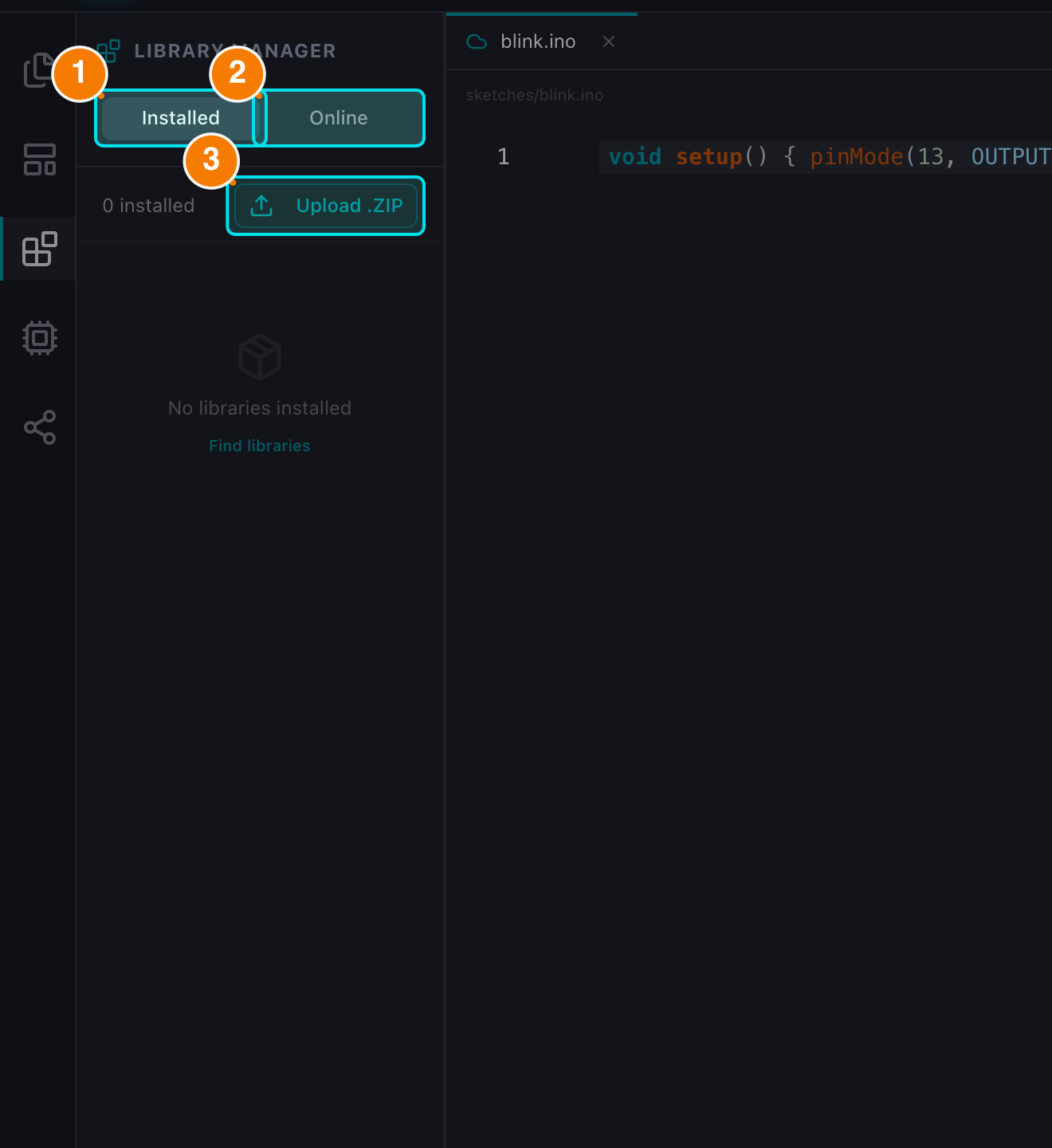
(1) Installed. (2) Online. (3) Upload .ZIP.
Library Manager
Click the Libraries tab (Blocks icon):
- Installed (default tab): libraries currently available to your sketches. Remove one with the trash icon.
- Online: search the Arduino library registry, view the library information and click Install.
- Upload .ZIP: install an external library from a ZIP file on your computer. Archives are validated before extraction; uploading a library that already exists asks you to confirm the replacement.
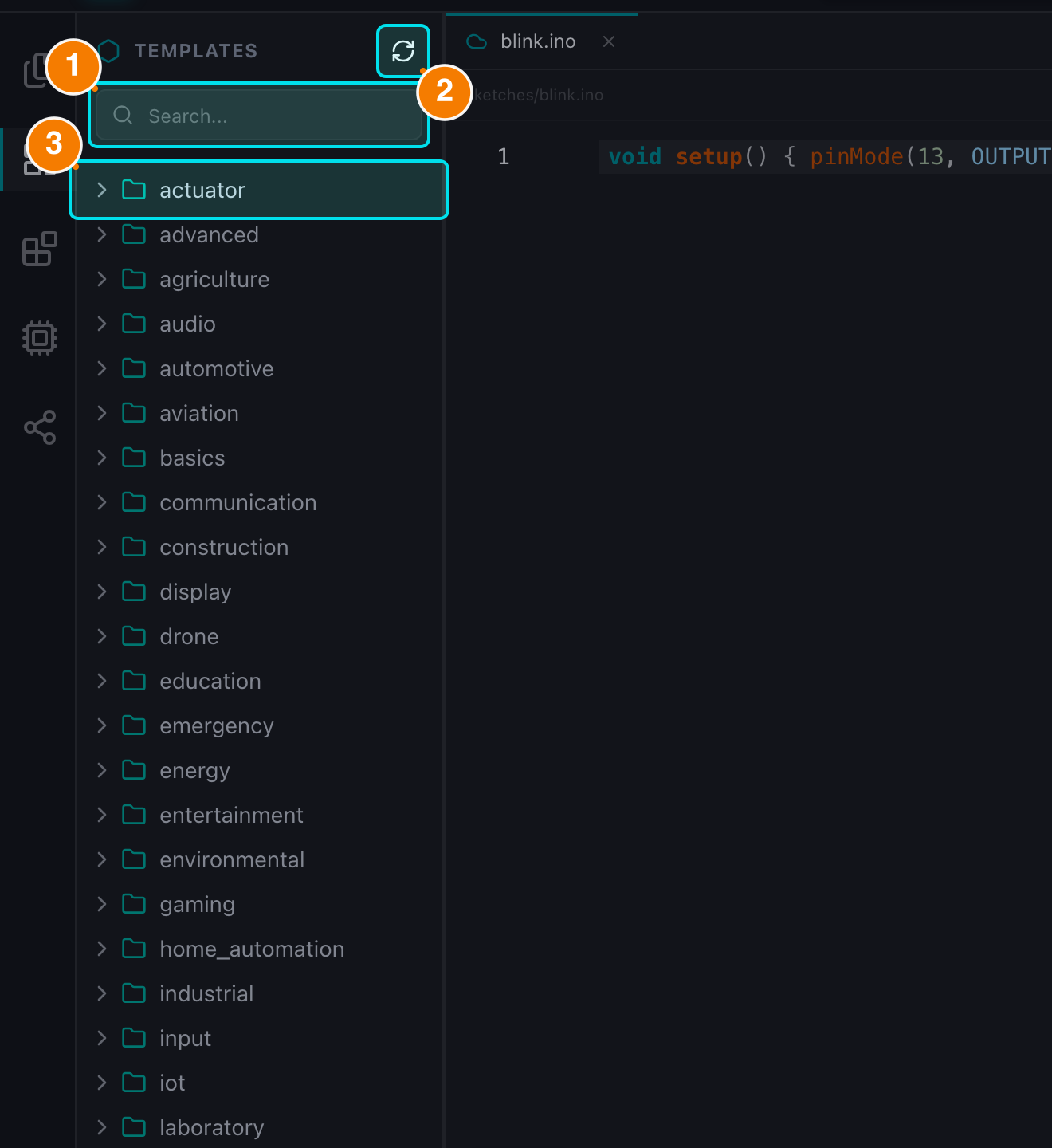
(1) Search templates. (2) Refresh list. (3) Category folders.
Templates
Click the Templates tab (Layout template icon) to browse built-in example sketches grouped by category (Basics, Sensors, Motors, Communication, Displays...):
- Expand a category and click a template to open a preview of its source code.
- Press Use Template to load it into the Editor.
- If you are offline, the IDE shows a warning instead of attempting to fetch the template.
Shared
Click the Shared tab (Share icon) to see two groups:
- My Shares: items you shared with other users.
- Shared With Me: files and folders other users shared with you. Folders can be expanded (lazy-loaded tree); opening a shared file respects its permission — view-only files stay locked in the editor.
See the Sharing guide for details on permissions and revoking access.