
Verify, upload, open the Serial Monitor and AI assistant, and reach support from the Header toolbar.
Main Tools and Actions
The Header toolbar contains the buttons you will use most while programming: build, flash, monitor and support.
1. Left Side: Toggle Sidebar (Menu)
- Icon: ☰ (hamburger menu).
- Function: open or close the left Sidebar (File Explorer).
- Shortcut:
Ctrl/Cmd + B. - When to use: close it for more coding space, open it to manage project files.
2. Build & Flash
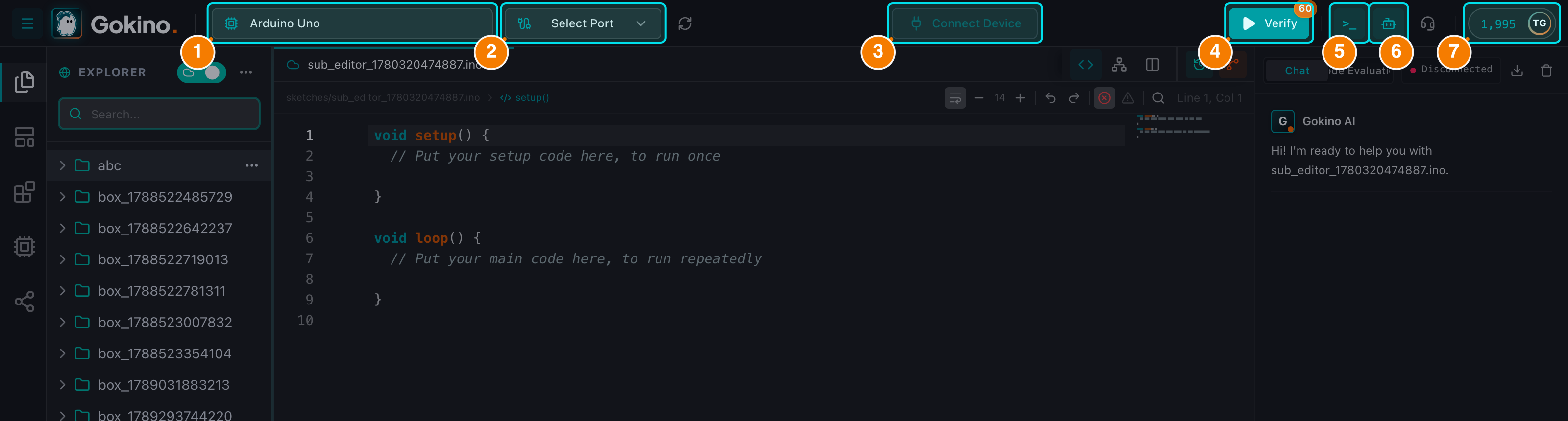
(4) Verify (compile). (5) Serial Monitor. (6) AI Assistant. (7) Account & credits.
▶️ Verify (Compile)
- Icon: green triangle (Play).
- Function: sends your code to the cloud compiler to detect errors without touching the board.
- Features:
- The compilation cannot be cancelled once started, but the editor stays unlocked — keep coding while it runs.
- The button switches to a spinning
Loader2state and is disabled to prevent spam clicking. - A free quota badge on the button shows the free compiles remaining this hour (60 Free/Lite, 120 Pro, 240 Max; badge turns red when nearly exhausted, amber with a coin icon when credits are being charged). After the quota, each compile costs 2 credits.
- Results appear in the Console with Flash/RAM usage or detailed errors.
- Shortcut:
Ctrl/Cmd + RorF9.
➔ Upload Firmware
- Icon: orange arrow.
- Function: compiles the sketch and flashes the firmware to the board over WebSerial.
- Requirement: the button only appears when a device is connected. If you press
Ctrl/Cmd + Uwhile disconnected, the IDE blocks the action with a red "Not Connected — Please connect a device before uploading" toast and a console log. - Progress: the button spins during upload; the Output Panel logs the start and the success message (no detailed percentage).
- Shortcut:
Ctrl/Cmd + UorF10.
3. Debug & Help
💻 Serial Monitor (Terminal)
- Icon:
> _. - Function: toggles the Output Panel at the bottom and switches to the Serial Monitor tab.
- When to use: view
Serial.println()output from the board or send commands to it. - Shortcut:
Ctrl/Cmd + M.
🤖 AI Assistant
- Icon: Bot.
- Function: opens the right AI sidebar. Ask the AI to explain code, find bugs, generate functions, review the sketch or draw wiring diagrams.
- Shortcut:
Ctrl/Cmd + /.
🎧 Support
- Icon: Headset.
- Function: opens the in-IDE Support panel with quick help topics (e.g., uploading code, WebSerial port errors) and a live chat where you can send text and screenshots.
4. Right Side: Account & Credits
The avatar shows your credit balance with a color code (green = sufficient, yellow = running low, red = empty) and your initials. The dropdown contains your email, current plan, the credit breakdown, Manage Credits, the Affiliate Program and Logout.