
Meet the Gokino browser IDE: cloud compilation, WebSerial upload, Cloud/Local workspaces and a context-aware AI assistant.
Introduction to Gokino
Gokino is an AI-integrated IDE for embedded systems that runs entirely in your browser. It combines cloud compilation of Arduino sketches, WebSerial flashing, a professional CodeMirror 6 editor, and a context-aware AI assistant — with no toolchain or driver installation.
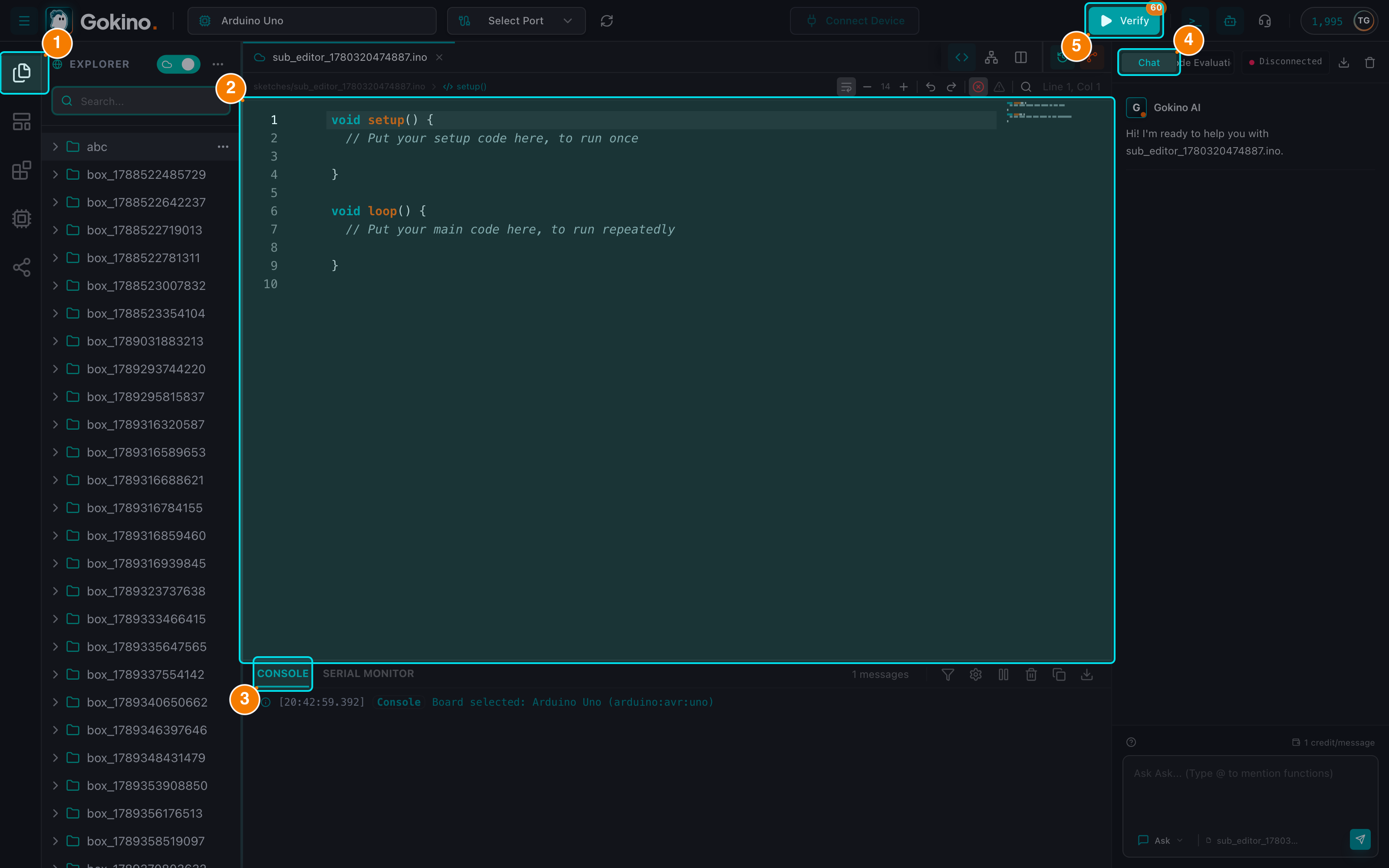
(1) Sidebar (Explorer, Templates, Libraries, Boards, Shared). (2) Code editor. (3) Console & Serial Monitor. (4) AI Assistant. (5) Verify & Upload.
Why Choose Gokino?
- Zero installation: Open your browser, connect your board through WebSerial and start coding.
- Cloud compiler: Sketches are compiled for the selected board (AVR, ESP32, ESP8266, STM32...) with a free hourly quota; no local toolchain needed.
- Context-aware AI: The assistant reads the file you are editing, understands libraries and pinouts, supports multiple chat modes and can propose code changes through a safe diff review.
- Cloud or Local workspaces: Keep projects in the cloud (sync + sharing) or open a folder directly on your machine through the File System Access API.
- Collaboration: Share files and folders with other Gokino accounts and control access with view/edit permissions.
- Version history: Save named checkpoints of a sketch and restore them at any time.
Requirements
Gokino works best in Chromium-based browsers:
| Feature | Chrome / Edge / Opera | Firefox | Safari |
|---|---|---|---|
| Cloud workspace, compile, upload (WebSerial) | ✅ | ❌ | ❌ |
| Local folder mode (File System Access API) | ✅ (Chrome/Edge) | ❌ | ❌ |
Linux Users
USB-Serial devices (Arduino, ESP32, etc.) create device files like
/dev/ttyACM0or/dev/ttyUSB0, which only allow access to thedialoutgroup. Since Gokino uses the WebSerial API, the browser needs to open these ports on your behalf. If the user running the browser is not in thedialoutgroup, WebSerial reports an "Access denied" error.Run
sudo usermod -a -G dialout $USER, then log out and log back in (restarting the machine is not necessary). If it still does not take effect, restart your browser.
Your First Steps
- Sign in to your Gokino account. New accounts receive an initial batch of free credits.
- Select a board in the Header (for example
Arduino Uno). - Connect a port through the browser's WebSerial dialog (the Upload button only appears once a device is connected).
- Open or create a sketch: use the File Explorer in the left Sidebar (Cloud mode), or open a folder on your computer (Local mode).
- Verify your code with the green Play button or
Cmd/Ctrl + R. - Upload the firmware with the orange Upload button or
Cmd/Ctrl + U. - Monitor the board with the Serial Monitor (
> _button orCmd/Ctrl + M).
Your First Sketch
Let's write a simple non-blocking blink program, then ask the AI to review it.
After pasting this code, open the Review (Code Review) tab of the AI Assistant (Bot button on the Header, or Cmd/Ctrl + /). The AI can explain that millis() is better than delay() for multitasking, report issues by severity and give your sketch a quality score (0–100).