
Select a board and port, compile or upload, monitor the connection and manage credits and subscription plans.
Header & Membership Plans Guide
The Header is your control center in Gokino. It is always visible at the top of the IDE and provides access to hardware, build, debugging and account controls.
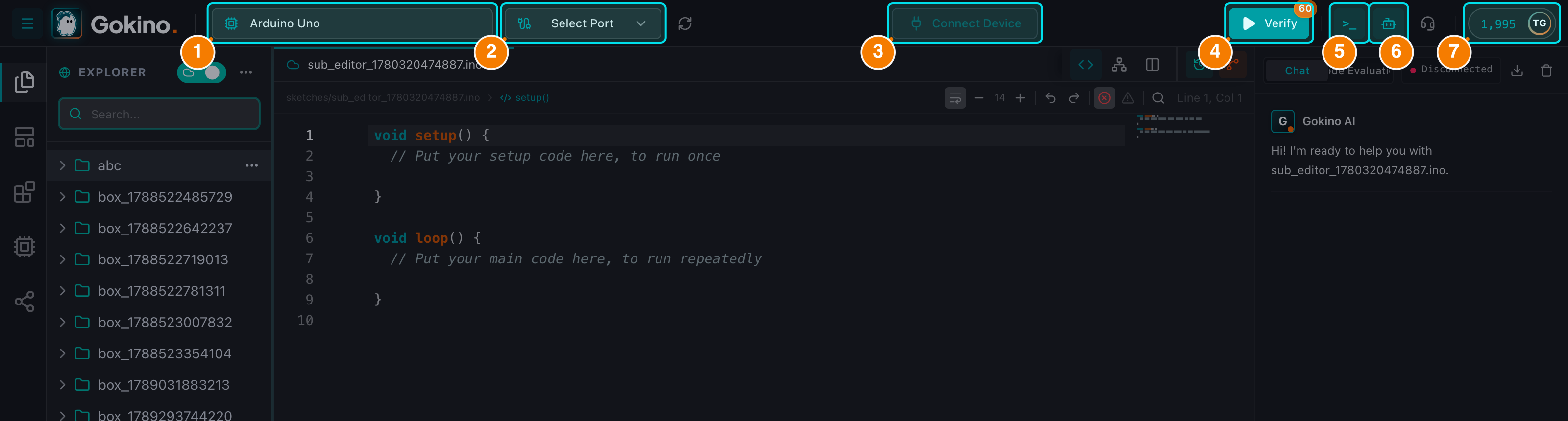
(1) Board selector. (2) Port selector. (3) Connection status — hover for Disconnect.
Toolbar Controls
1. Toggle Sidebar (Menu Icon)
Click the hamburger menu icon on the far left to expand or collapse the Left Sidebar (File Explorer).
- Shortcut:
Ctrl/Cmd + B
2. Select Board
The dropdown shows the currently selected board (e.g., "Arduino Uno").
- Click to change: Opens the list of installed boards with their architecture.
- Search: Type to filter instantly (e.g.,
esp32,mega). - The selection is remembered in your browser and restored after a page reload.
3. Select Port
Displays the connected USB/Serial port (e.g., COM3 or /dev/ttyUSB0).
- Connect: If no port is selected, click to open the browser's WebSerial selection dialog.
- Refresh ports: Use the refresh icon in the dropdown to re-scan
navigator.serial.getPorts()after plugging in a new board — no page reload needed. A device that has never been authorized still requires the browser'srequestPortdialog. - After connecting, the Header shows the port with its VID/PID (e.g.,
USB Device (VID:2341 PID:0043)).
4. Connection Status
Located in the middle of the Header, this is a clickable button:
- Connected: Blinking green dot along with the board and port (e.g.,
Arduino Uno on COM3). Hover and click the red Disconnect action to release the device. - Not Connected: Plug icon and "Connect Device". Click to connect (a board and port must be selected).
- Processing: Spinner while connecting/disconnecting.
5. Action Buttons
- Verify (Compile) — green Play icon. Compiles your code in the cloud to check for errors without uploading.
- The button shows a free quota badge: the number of free compilations remaining in the current hour (60 for Free/Lite, 120 for Pro, 240 for Max). When the quota is exhausted, each compile costs credits (2 by default).
- You can keep editing while the compilation runs.
- Shortcut:
Ctrl/Cmd + RorF9.
- Upload — orange Upload icon. Compiles and flashes the firmware over WebSerial. This button only appears when a device is connected.
- Pressing
Ctrl/Cmd + Uwhile disconnected is blocked with a red "Not Connected" toast. - Shortcut:
Ctrl/Cmd + UorF10.
- Pressing
- Serial Monitor (
> _icon): Toggles the Output Panel at the bottom.- Shortcut:
Ctrl/Cmd + M.
- Shortcut:
- AI Assistant (Bot icon): Toggles the AI sidebar.
- Shortcut:
Ctrl/Cmd + /.
- Shortcut:
- Support (Headset icon): Opens the in-IDE Support panel with quick topics and live chat.
6. Account Menu
The avatar on the right shows your credit balance (green = healthy, yellow = running low, red = empty). Click it to see your email, current plan, credit breakdown (Subscription / Bonus / Total), Manage Credits, the Affiliate Program and Logout.
Membership Plans & Credits
Gokino uses credits for AI requests and for compilations that exceed the free hourly quota.
Subscription Plans
| Plan | Price/month | Credits/month | Free compiles/hour |
|---|---|---|---|
| Free (default) | $0 | Initial signup grant (300 credits by default) | 60 |
| Lite | $5 | 900 | 60 |
| Pro ⭐ (most popular) | $10 | 2700 | 120 |
| Max | $20 | 7500 | 240 |
All paid plans support 4 billing cycles — Monthly, Quarterly, Semi-Annual and Annual — with progressively discounted rates (for example Pro: $10 monthly, $27 quarterly, $50 semi-annual, $100 annual).
Top-up, Gift Cards & Affiliate
- Top-up pack: Buy extra credits that never expire (450 credits for $3.00 by default; the exact pack is configured per deployment).
- Gift Cards: Redeem a gift card code in the Redeem tab of the Credit window.
- Affiliate Program: Apply to become a partner and earn commissions from referrals.
Cost Summary
- AI chat (Code / Ask / Debug): 1 credit per message.
- Architect mode: 2 credits per message.
- Code Review: 2 credits per run.
- Compile beyond the free hourly quota: 2 credits per compile.
Note: Free compilations reset hourly. Your credit balance and usage history are available in the Manage Credits window.