
Open, close, reorder and manage editor tabs, view modes, breadcrumb and version buttons.
Tab & Layout Management
The editor supports multitasking with a flexible tab system and multiple view modes.

(1) Open tab. (2) Second tab. (3) Save version. (4) Version history.
Editor Tabs
The tab bar is located at the top of the editor area and shows the currently open files.
Basic Operations
- Open: click a file in the File Explorer. Opening a file that is already open focuses the existing tab — no duplicates are created.
- Close: click the
xon the tab. If the tab has unsaved changes, a confirmation dialog appears with Cancel, Don't Save and Save options. - Reorder: drag a tab to a new position. A teal drop indicator shows where it will land.
Context Menu (Right-click)
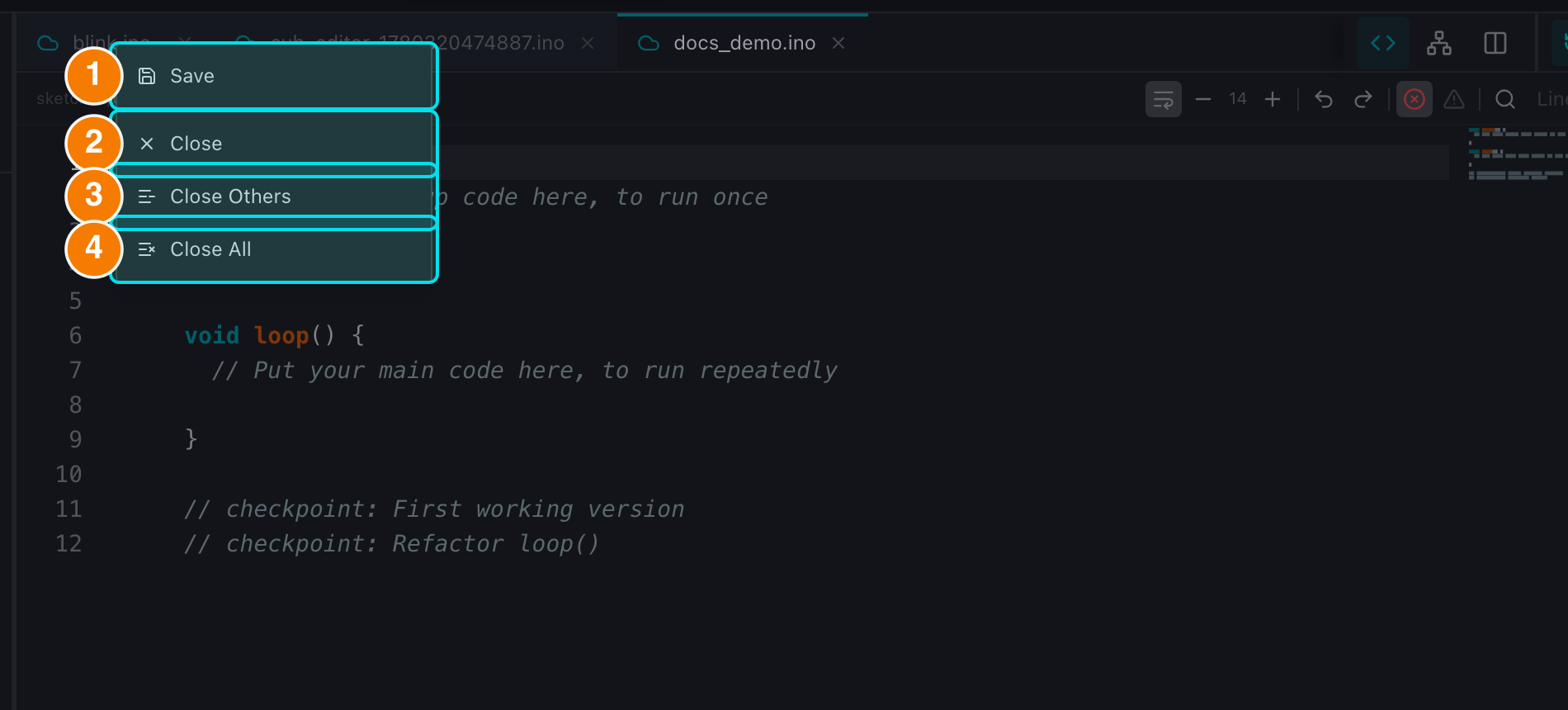
(1) Save. (2) Close. (3) Close Others. (4) Close All.
Right-click a tab for quick commands:
- Save: save the clicked tab.
- Close: close the clicked tab (with the unsaved-changes guard).
- Close Others: close every tab except the clicked one.
- Close All: close all tabs.
Status Indicators
- Cloud icon (teal): the file belongs to the Cloud workspace.
- Hard drive icon (orange): the file is in a Local folder.
- Orange dot: the file has unsaved changes (auto-save pending).
- Locked / view-only: a shared file opened with view permission cannot be edited.
Version Buttons
On the right side of the tab bar:
- History (clock icon): open the Version History of the current file.
- Save Version (branch icon): save a named checkpoint (
Ctrl/Cmd + Shift + S).

(1) Code view. (2) Diagram view. (3) Split view.
View Modes
In the top-right corner of the tab bar you can switch between 3 view modes:
- Code View (default): only the code editor, optimized for focused programming.
- Diagram View: full-screen block diagram generated from the source code, showing functions, branches and loops.
- Split View: code on one side and diagram on the other, with two-way click-to-jump navigation between them.