
CodeMirror 6 editor features and shortcuts, plus the AI assistant modes, Code Review and safe diff-based apply.
Editor & AI Assistant
The core of Gokino is an intelligent editing environment: a professional CodeMirror 6 editor with a context-aware AI assistant docked on the right.

(1) Open tab. (2) Second tab. (3) Save version. (4) Version history.
Professional Editor
Gokino uses CodeMirror 6, optimized for Arduino C/C++ code.
Features
- Syntax highlighting: Full color coding for C/C++ and Arduino-specific keywords.
- Auto-completion (IntelliSense): Type
Serial.to see methods likebegin()orprintln(); typedigitalto seedigitalWrite()/digitalRead(). - Diagnostics: Syntax errors appear as red squiggles from the live linter, and compiler errors from GCC are mapped back onto the exact line/column in the editor after a Verify.
- Auto-save: The file is saved automatically after a short idle delay, and an orange dot appears on the tab while there are unsaved changes.
- Format document:
Shift + Alt + Fre-indents the whole sketch without changing its logic. - Minimap & breadcrumb: A code overview on the right and a symbol path under the tab bar.
- Multiple cursors: Hold
Alt(Windows) orOption(Mac) and click.
Common Shortcuts
| Shortcut | Action |
|---|---|
Ctrl/Cmd + S | Save |
Ctrl/Cmd + F | Find |
Ctrl/Cmd + H | Replace |
Shift + Alt + F | Format document |
Ctrl/Cmd + R / F9 | Verify (compile) |
Ctrl/Cmd + U / F10 | Upload |
Ctrl/Cmd + M | Toggle Serial Monitor |
Ctrl/Cmd + / | Toggle AI Assistant |
Ctrl/Cmd + B | Toggle Sidebar |
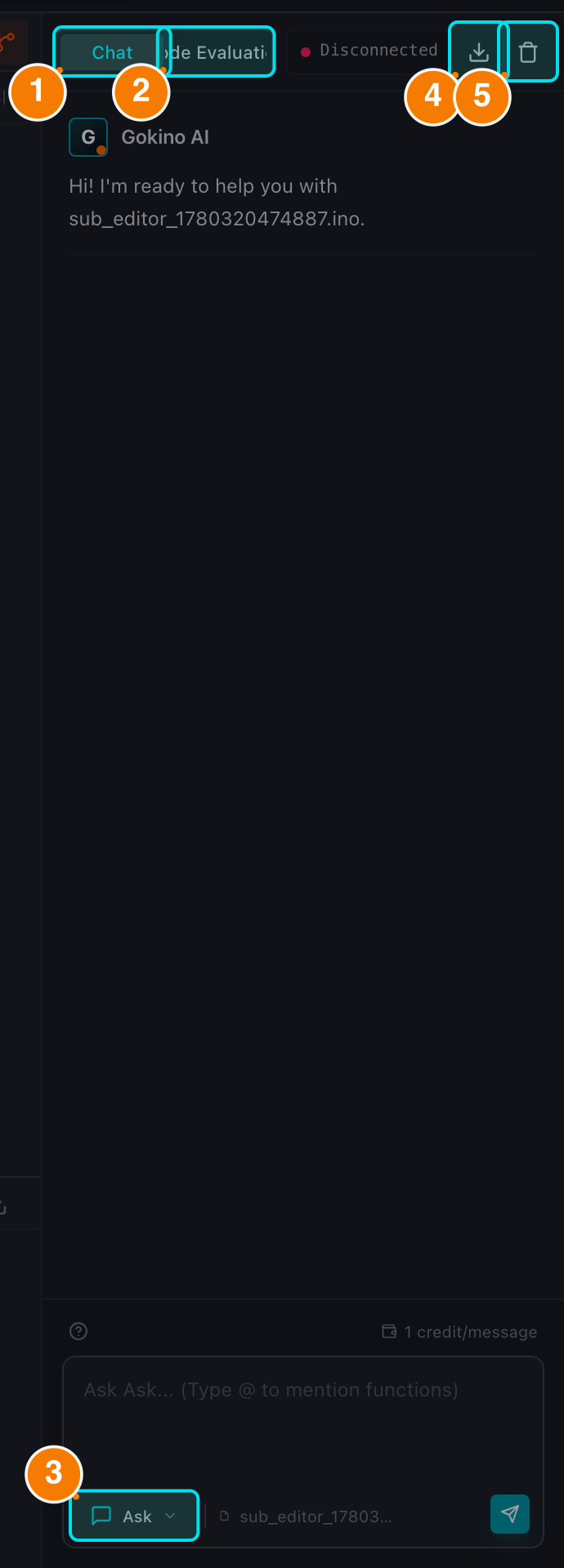
(1) Chat tab. (2) Review tab. (3) Mode selector. (4) Export chat. (5) Clear chat.
AI Assistant
The right sidebar is your AI pair programmer: open it with the Bot button on the Header or Ctrl/Cmd + /.
Chat
- Modes: Code (write and modify code), Architect (planning, modules, wiring) and Ask (explain, debug, look up) — Ask is the default. A dedicated Debug mode is also used automatically when you press Fix with AI on a compiler error in the Console.
- Slash commands (7):
/fix,/explain,/refactor,/test,/wiring,/comment,/simulate. - @ Mention: type
@to reference a function in the open file — the AI receives the exact function body. - Chat history is isolated per file; scroll up to load older messages.
- Streaming with Stop: responses stream in real time and can be interrupted with the Stop button.
Code Review
The Review tab audits the current sketch in 4 sub-tabs:
- Summary: quality score (0–100) plus RAM/Flash memory estimate.
- Issues: findings grouped into bugs, performance, security, style and best practices, with severity filters (critical / high / medium / low).
- Suggestions: before/after diffs you can apply (individually or with Apply All).
- History: previous review runs for the file.
Choose the review depth (Quick / Standard / Detailed) before running an audit.
Applying AI Code Safely
- Apply / Diff review: the AI's code blocks are never written to your file silently. Pressing Apply opens a diff preview (added lines in green, removed lines in red) where you Accept or Reject the change.
- Smart Patch (⚡): for local fixes (changing a variable, a statement or one function), the patch is surgically applied to that section only, preserving the rest of the file.
- Snippet blocks (
cppfix) are copy-only: short snippets cannot be applied to the whole file, which prevents accidental overwrites. - Multi-file changes are reviewed in a dedicated modal before anything is created.
Credits
- Chat messages in Code / Ask / Debug mode: 1 credit each.
- Architect mode: 2 credits per message.
- Code Review: 2 credits per run.
- Stream interruption guard: switching files while the AI is streaming asks for confirmation so a half-finished answer is never mixed into another file's chat.
Support Features
- Local privacy panel: when you are editing a file from a Local folder, the assistant shows a consent panel before any local code can be indexed for the cloud.
- Export & Clear: the Download button exports the whole conversation as Markdown; the trash button clears the chat after a confirmation.
- AI Status: the header of the assistant shows response time and online/offline state; click it for endpoint/API details.