
Search and install Arduino libraries, uninstall unused ones and upload external libraries from a ZIP file.
Library Manager
To use sensors, displays or other modules, you often need extra Arduino libraries. The Library Manager installs them in a few clicks.
Icon: 📦 (Blocks)
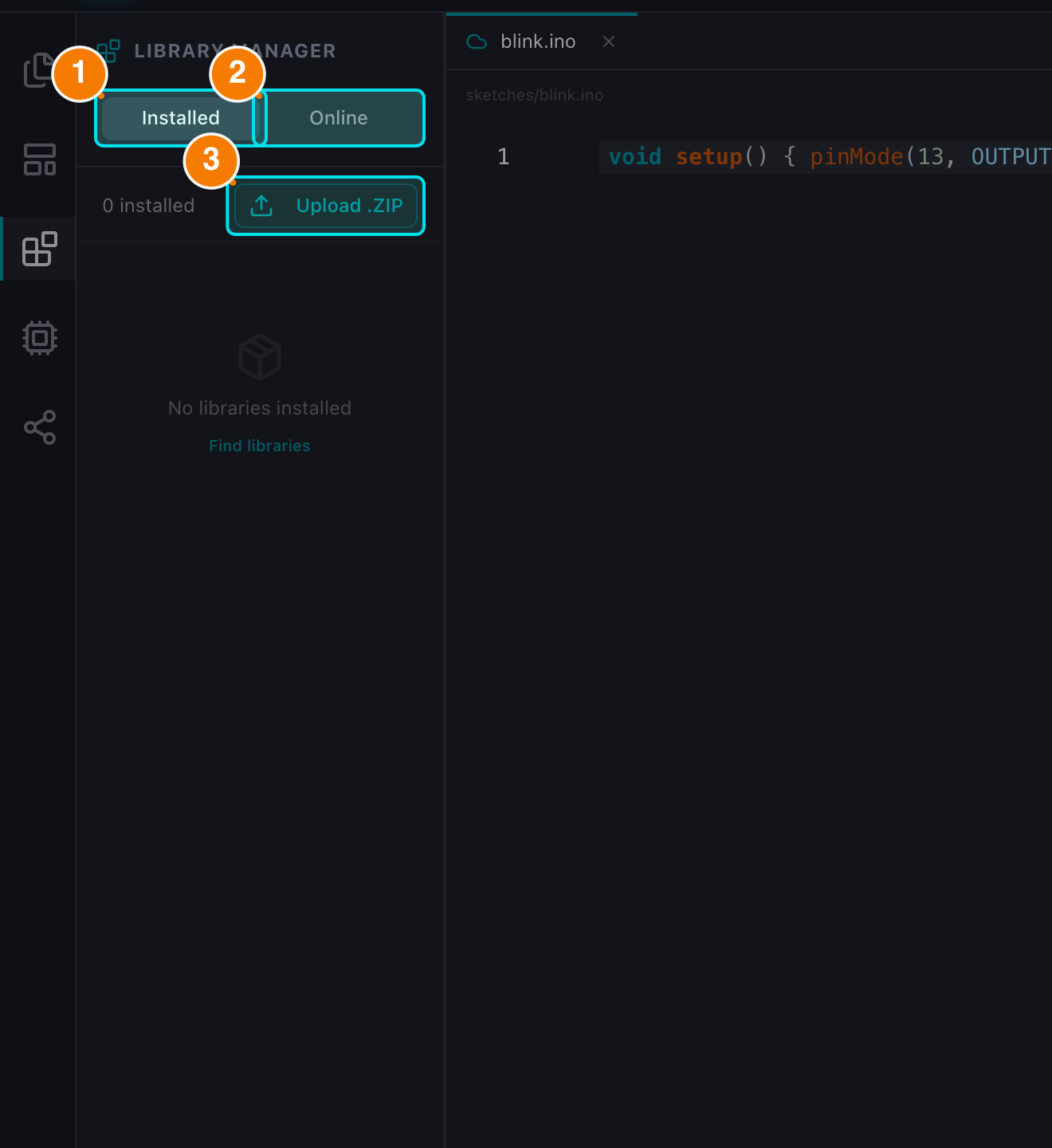
(1) Installed. (2) Online. (3) Upload .ZIP.
Main Interface
The module has 2 tabs (the Installed tab is the default):
1. Installed — default
The libraries currently available to your sketches.
- Manage: check the installed version.
- Uninstall: click the trash icon to remove a library that is no longer needed.
- Upload .ZIP: install an external library from a ZIP file on your computer. The archive is validated before extraction (unsafe paths are rejected), and uploading over an existing library asks for confirmation.
2. Online
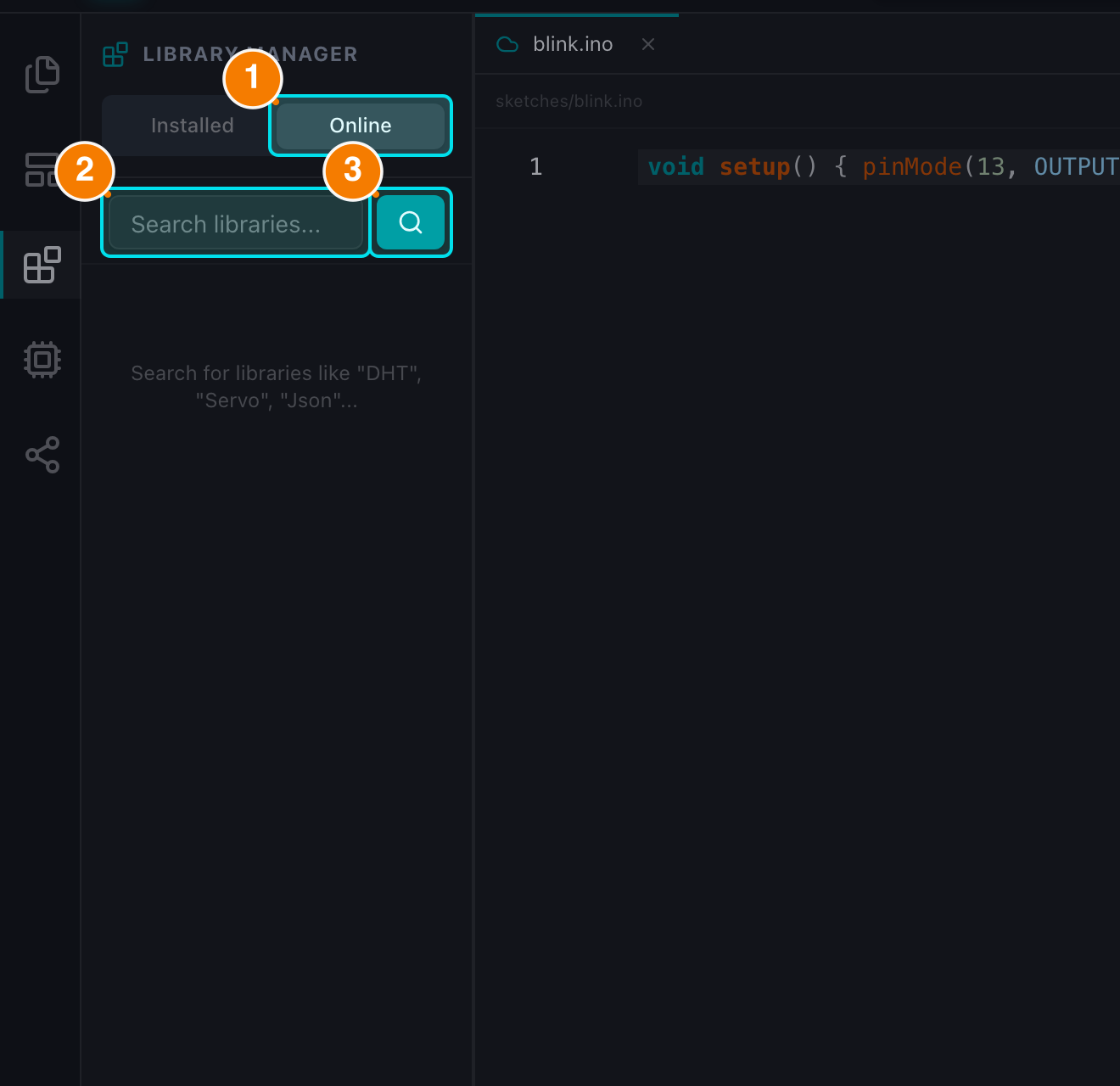
(1) Online tab. (2) Search box. (3) Search.
The Arduino library registry.
- Search: type keywords into the search box (e.g., "DHT sensor", "Neopixel", "LCD I2C").
- Information: results show the library name, author, description and latest version.
- Action: click Install. A spinner appears while the library is downloaded and extracted; the card then switches to its installed state.
Notes
- API errors (registry unavailable, upload limit reached, invalid archive...) are reported as toasts.
- Confirm dialogs require an explicit button click — pressing
Escor clicking the backdrop does not dismiss them. - Code completion: the editor's library autocomplete uses a built-in list of standard libraries; it does not scan the contents of libraries you upload as ZIP.
- After installing a library, add
#include <LibraryName.h>at the top of your sketch to use it.