
Message types, level filter and search, error badges and the Fix with AI action for compile errors.
Console Tab (System Log)
The Console shows the "health" of your project: compilation, upload and system messages.
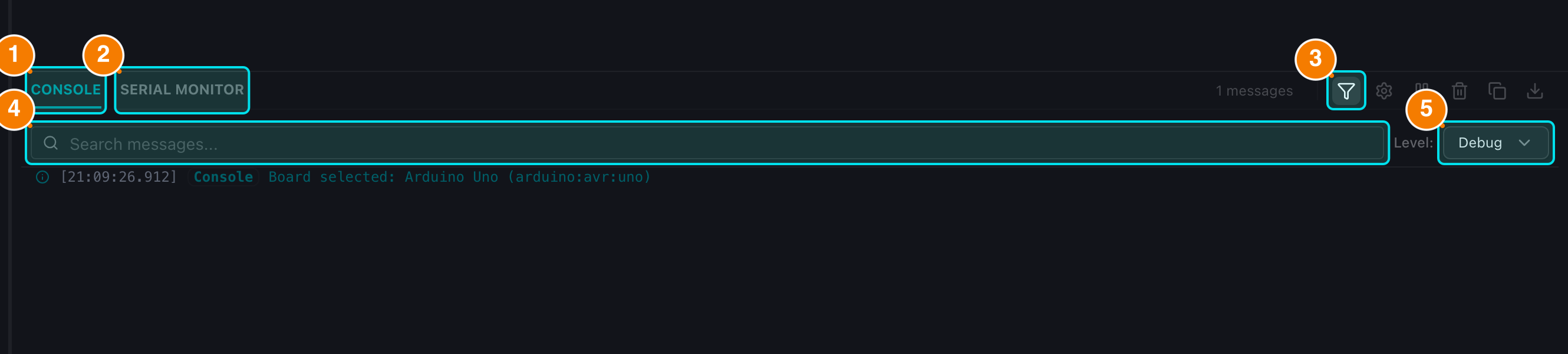
(1) CONSOLE tab. (2) SERIAL MONITOR tab. (3) Filter toggle. (4) Search box. (5) Level filter.
Message Types
Messages are color-coded for quick scanning:
- Debug (Gray): detailed technical information, useful when diagnosing the IDE itself.
- Info (Teal): general information, e.g., "Sketch compiled successfully".
- Warning (Orange): warnings such as unused variables — the code still runs but deserves attention.
- Error (Red): critical errors (missing semicolon, library not found...); the compilation stops.
- Success (Green): success messages, e.g., "Firmware upload complete".
Filter & Search
When the log grows long:
- Pick a level in the dropdown — Debug is the default and displays every message.
- Type a keyword into the search box next to it. Both filters apply instantly and can be combined. Clearing them restores the full log.
Error/Warning Badges
The Console toolbar always displays:
- Red badge: current error count.
- Yellow badge: current warning count.
- Total: number of messages in the log.
Debugging a Failed Compile
When compilation fails:
- The Console shows the file, line and column of each error (e.g.,
main.ino:42:10) together with the GCC message. - The editor simultaneously marks the same location with a red squiggle (Compiler Lint Bridge), so you can jump straight to the problem.
- Click Fix with AI on the error message (available for compilation errors) to send the error log and related code to the assistant in Debug mode.