
Cloud and Local modes, create/rename/delete files and folders, upload .ino files, search, refresh and download projects.
File Explorer & Project Management
The File Explorer is where you organize your code. Gokino supports two working modes: Cloud and Local.
1. Cloud Mode vs Local Mode
Use the mode switch at the top of the Explorer panel:
☁️ Cloud Mode
- Storage: files are stored securely in your Gokino workspace (Supabase).
- Pros: accessible from any device, synchronized, shareable, version-checkpointed.
- Best for: new projects, collaboration and coding without local setup.
💻 Local Mode
- Storage: files live directly on your computer's disk.
- Mechanism: the browser's File System Access API reads/writes the folder you select.
- Pros: full control over your data, works alongside Git and other editors, works partially offline.
- Requirements: Chrome or Edge (Chromium). Firefox and Safari show a friendly "File System Access API not supported" message.
- How to use:
- Switch to Local mode.
- Click Open Folder and pick a project folder.
- Grant the browser permission when prompted.
External edits: when a file changes on disk outside the IDE, the open tab is refreshed automatically if it has no unsaved changes. If the tab is modified, the sync is skipped to protect your work; if the file is deleted outside the IDE, its clean tab closes automatically.
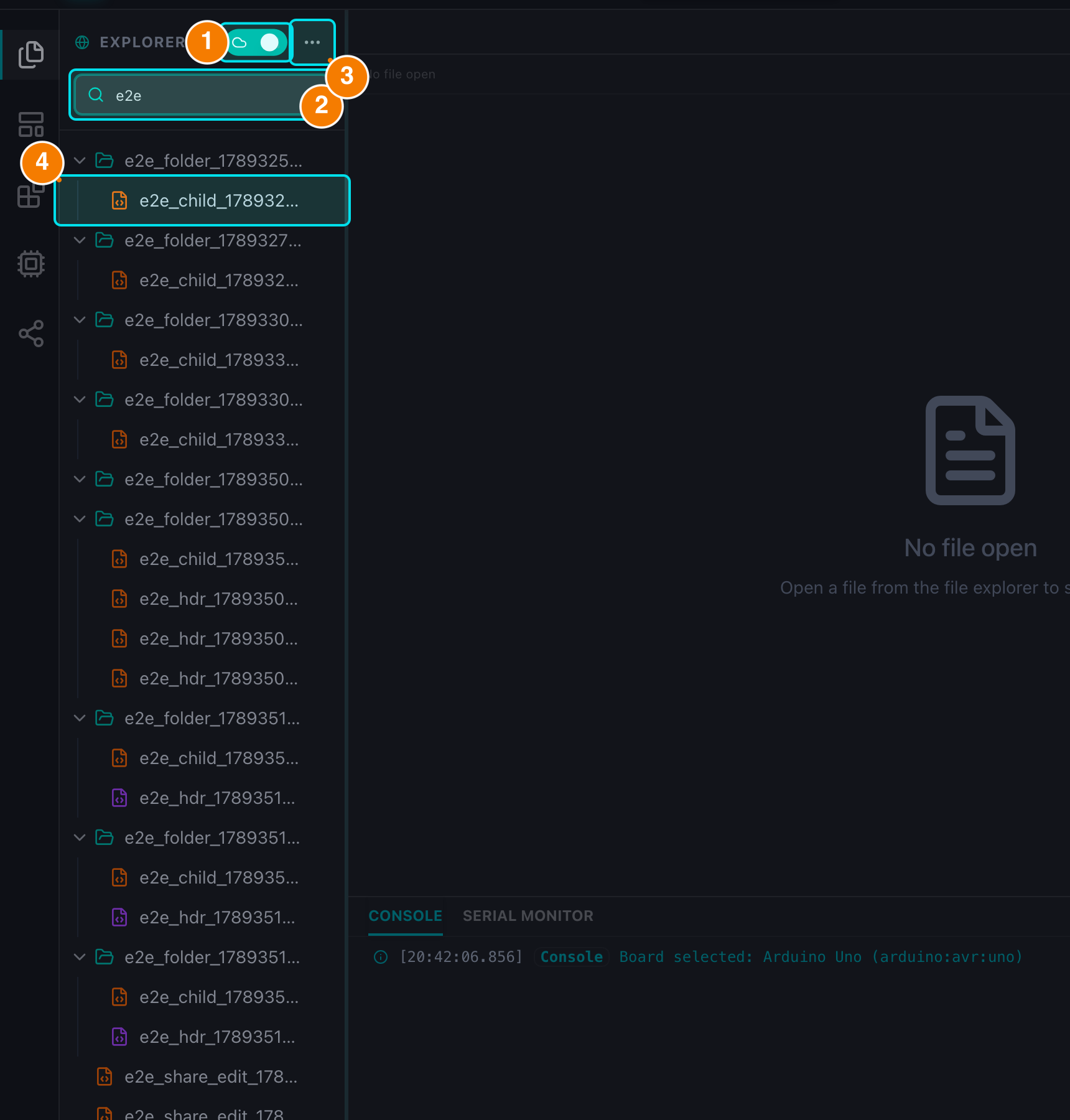
(1) Cloud/Local switch. (2) Search. (3) Actions menu. (4) Folders and .ino files.
2. Working with Files & Folders
The ... menu on the Explorer header (and on each folder row) provides:
- New File — creates a file and opens it in the Editor with a
setup()/loop()skeleton. - New Folder — creates a subdirectory.
- Upload Files — upload
.inofiles from your computer (optionally directly into the selected subfolder). - Download Workspace — export the entire project as a
.zip. - Refresh Workspace — re-fetch the cloud file tree without reloading the page.
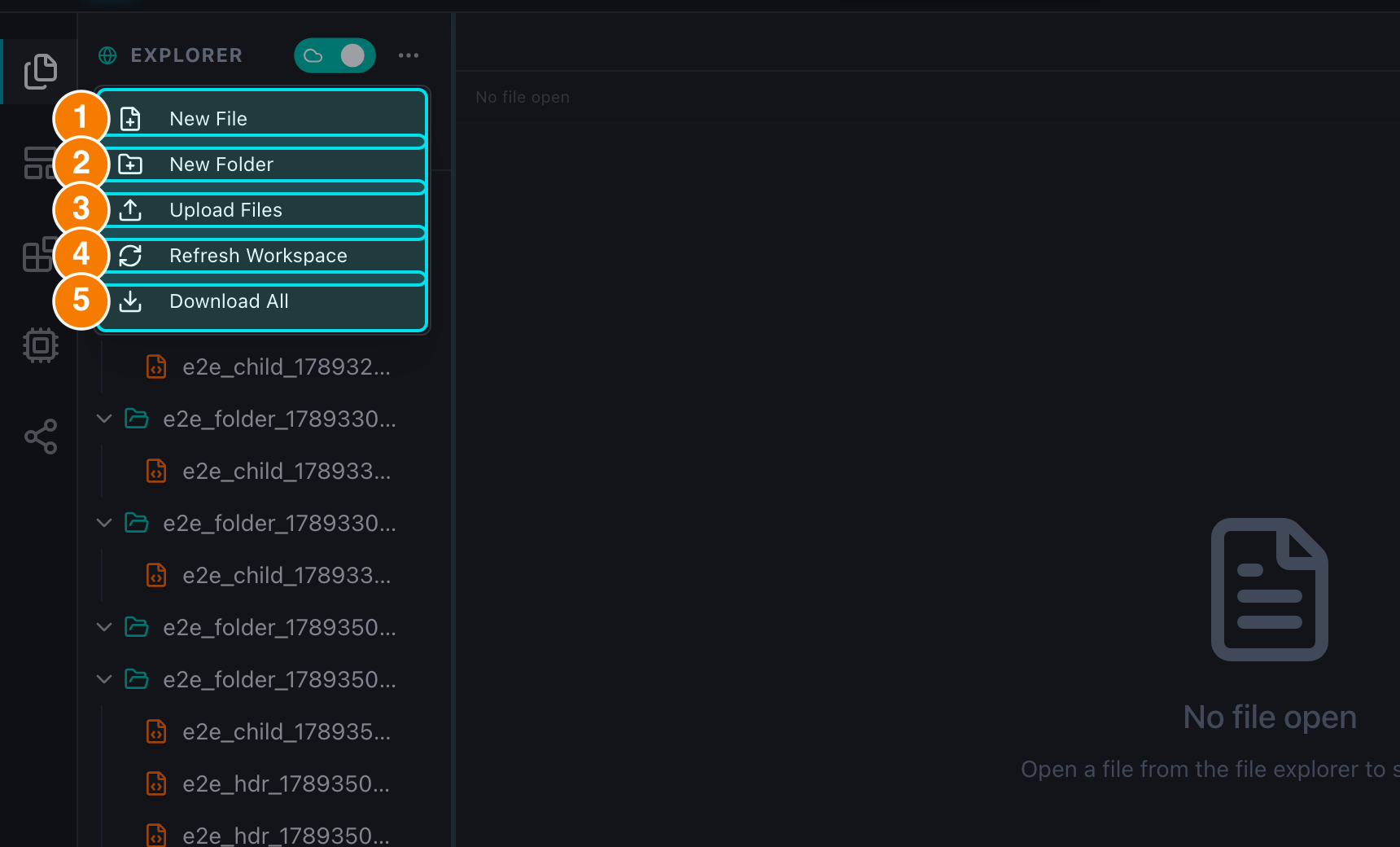
(1) New File. (2) New Folder. (3) Upload Files. (4) Refresh Workspace. (5) Download All.
File Rules & Validation
- For security, the IDE works with
.inofiles only. New files and uploads always use the.inoextension; folders and other file types are rejected. - Naming a file that already exists auto-increments it (
same_name_1.ino) instead of overwriting. - Forbidden characters (
/ \ : * ? " < > |) show a red border and a detailed error; an empty name disables the Create button. - Renaming updates the open tab title immediately and keeps the code intact.
Deleting
- File:
...menu → Delete → confirm in the dialog. The file's editor tab closes automatically. - Folder: a dedicated dialog warns how many files and subfolders will be deleted and requires typing the exact folder name before the Delete button enables.
- Multiple items:
Ctrl/Cmd + Click(orShift + Clickfor a range) to select several files/folders, then pressCtrl/Cmd + Dor right-click → Delete. The batch dialog shows the totals and requires typing XOA to confirm.
Context Menu (Right-click)
Right-click directly on a file/folder in the tree for the 3 quick actions: Download, Rename (single selection only) and Delete. With multiple items selected, the menu shows Download and Delete.
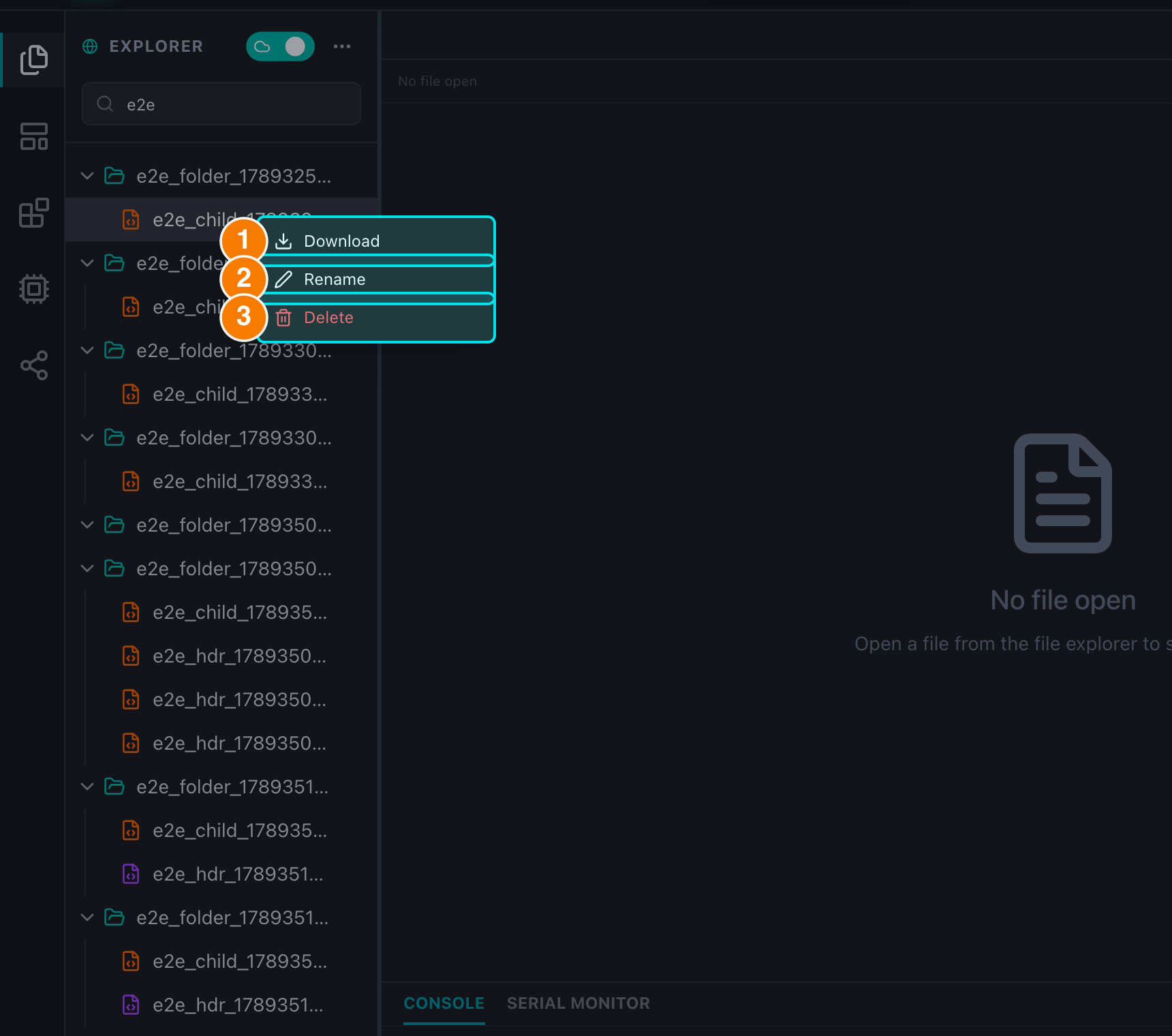
(1) Download. (2) Rename (single selection). (3) Delete.
Drag & Drop
Drag a file onto a folder in the tree to move it. The target folder is highlighted while dragging.
3. Search & Navigation
- Search: the input at the top of the Explorer filters the tree by file or folder name; clearing it restores the full tree.
- Open: click a file to open it. Already-open files focus their existing tab instead of creating duplicates.
- Icons: folders use teal Folder/FolderOpen icons;
.inofiles use the orange FileCode icon.